

Import a demo store
You need the LanternWP theme (or a child theme of it), WooCommerce and LanternWP Companion active. The Demos screen loads the list of demos and their images from lanternwp.com, and an import downloads the demo's files from there.
Import a demo
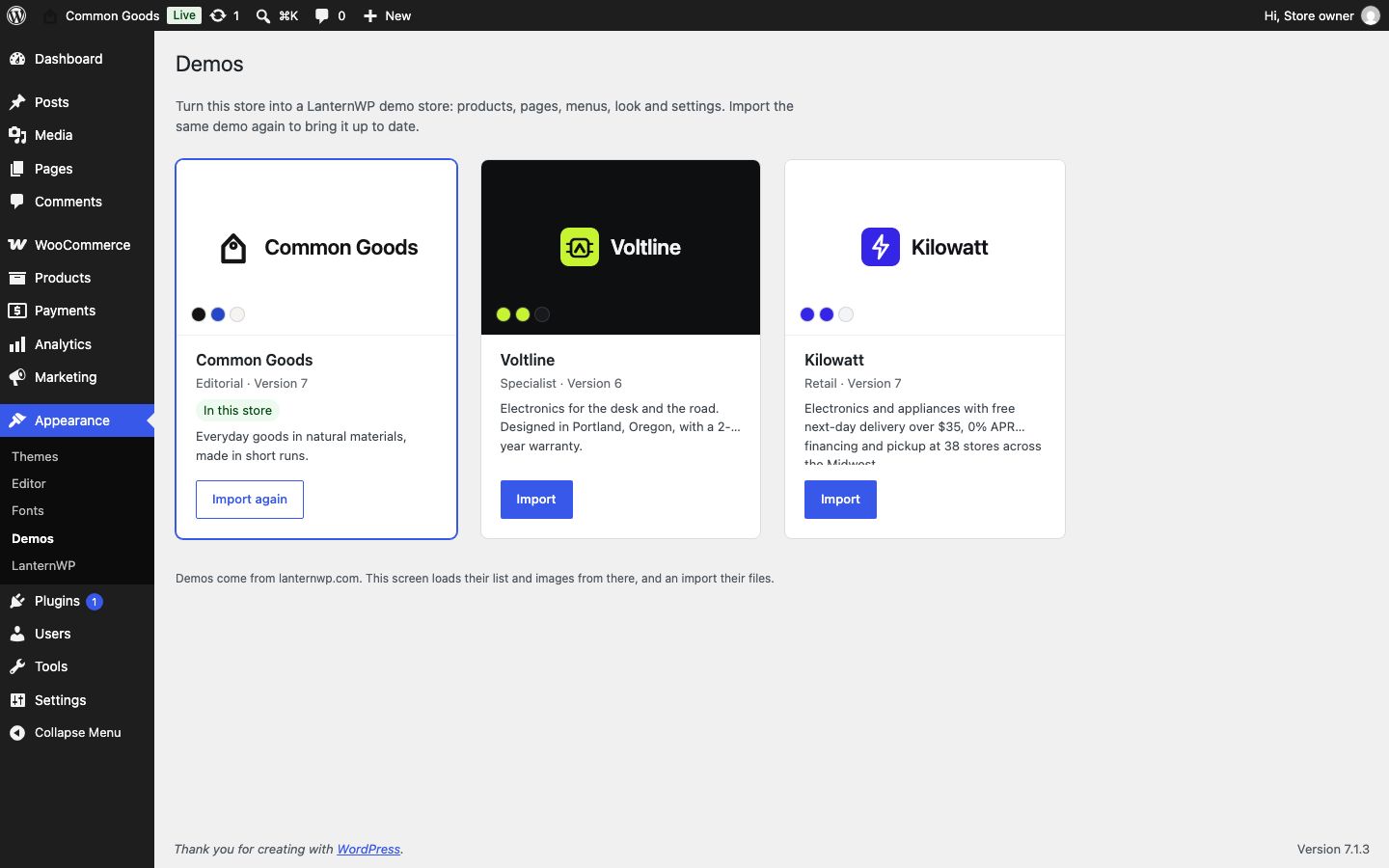
- Go to Appearance → Demos.
- Choose a demo and select Import.
- Read what the import writes, then select Import with the demo's name to confirm. The import makes this store the demo store. It writes:
- the store's name, tagline, logo, currency and address
- the demo's products, categories, posts, pages, menus, customer and orders
- its look, header, footer and template designs
- shipping, pickup, payment methods and the checkout page
- Wait while it runs. The screen shows each stage: checking the demo, downloading images, adding images to the media library and importing the store. Stay on the screen until it says the demo is imported.
When it is done, select Edit in the Site Editor to start making the store yours, or visit your site.
What stays yours
Your own products, posts and pages stay, and so do your terms and privacy pages. What an earlier demo import created is updated or removed.
Importing again
Each demo card shows its version and whether it is in this store:
- Import again imports the same version once more, which puts back what the demo set up.
- Update to version N appears when lanternwp.com has a newer version of the demo in your store.
- Importing another demo switches the store to it.
Importing again overwrites the demo's own products, pages and settings with the demo's, so changes you made to them are lost. Your changes in Styles and the LanternWP panel go too; Revisions in Styles keeps them. Change your own content instead, or make your changes after the last import.
Use only a demo's look
A demo's look, its colours, fonts, shape and spacing, can become your store's look without anything else of the demo: your products, posts, pages, menus, header, footer and settings stay as they are.
- Go to Appearance → Demos.
- Choose a demo and select Use the look only.
- If you have changed Styles, choose what happens to your changes: Replace them with the demo’s look (Revisions in Styles keeps them) or Keep them over the demo’s look.
- Select Use this look.
The demo's look becomes the look your store started with: Reset styles in Styles comes back to it from now on, and its card says Its look is in this store. Common Goods' look is the theme's own, so Use the look only on Common Goods takes the store back to it. Only the demo's settings file is read from lanternwp.com; no images are downloaded.
If an import stops, see Import problems.