

Start here
These are the steps the theme's own screen, Appearance → LanternWP, walks you through. It ticks a step off when it sees it done.
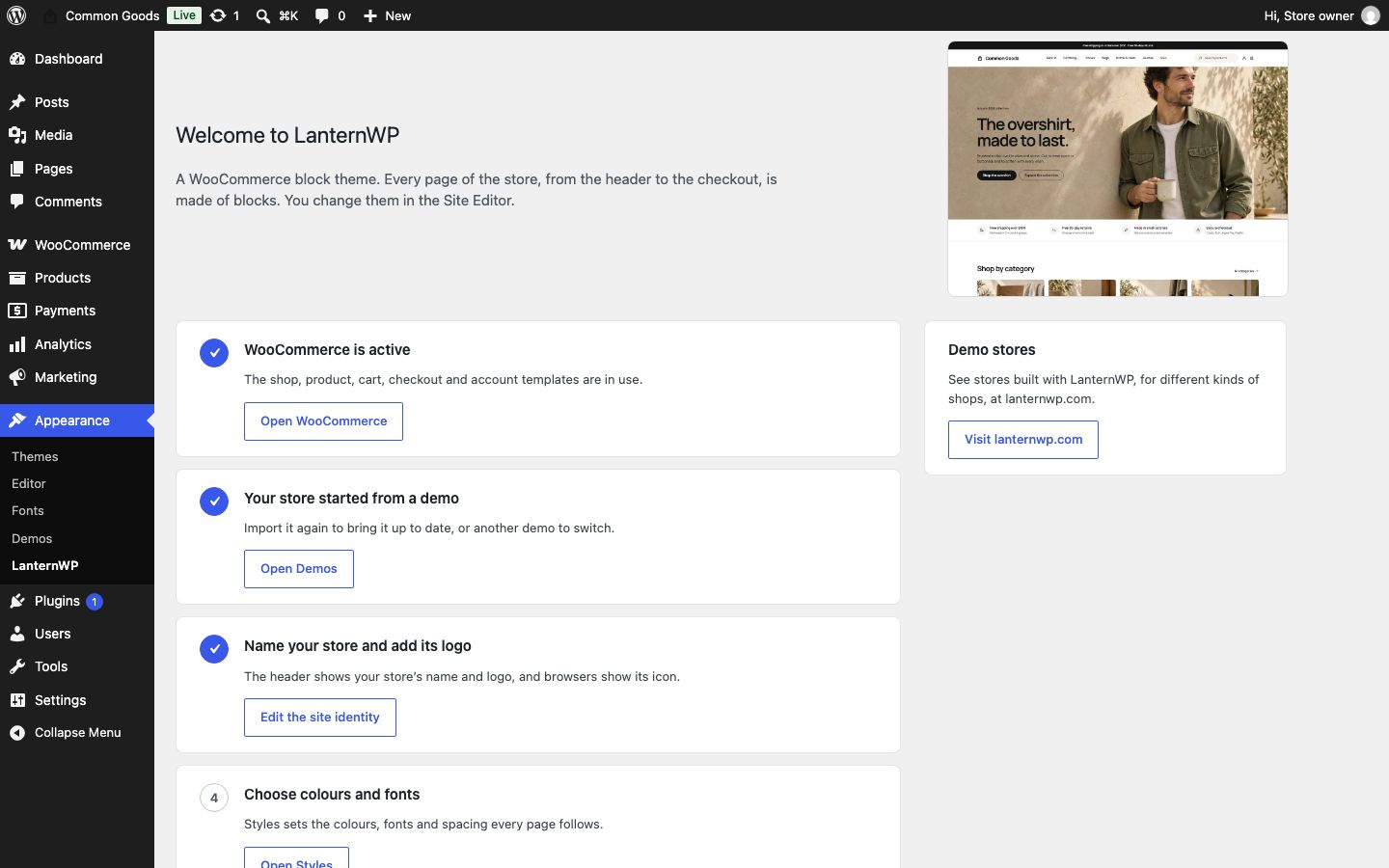
1. Install WooCommerce and the theme
- Go to Plugins → Add New Plugin, search for WooCommerce, then select Install Now and Activate. The shop, product, cart, checkout and account pages come from WooCommerce; without it the blog and pages work as in any block theme.
- Go to Appearance → Themes → Add New Theme and search for LanternWP, then select Install and Activate. LanternWP is on its way to the WordPress.org theme directory; it appears in the search once it is listed. Until then, download it from lanternwp.com and upload it in Appearance → Themes → Add New Theme → Upload Theme. Once it is listed, WordPress updates it from the directory.
See Requirements for the WordPress, PHP and WooCommerce versions it needs.
2. Add LanternWP Companion
Companion is a free plugin from lanternwp.com, not from the plugin directory. It imports the demo stores and adds a few store features, such as Bestseller and New badges and the lowest price before a discount. The theme works without it.
- Download the plugin's zip file from lanternwp.com.
- Go to Plugins → Add New Plugin → Upload Plugin, choose the file, then select Install Now and Activate Plugin.
Its updates come from lanternwp.com: Dashboard → Updates offers a new version of Companion as it does for plugins from the directory.
3. Import a demo store
Go to Appearance → Demos, pick Common Goods, Voltline or Kilowatt and import it. The import adds the demo's products with their photos, pages, menus and store settings, and shows its progress as it goes.
4. Make it yours
Back on Appearance → LanternWP, the remaining steps link to the screens where each is done:
- Name your store and add its logo: the header shows your store's name and logo, and browsers show its icon.
- Choose colours and fonts: Styles sets the colours and fonts every page follows, and the LanternWP panel in the editor the shape, labels and spacing (Shape, labels and spacing).
- Make the home page yours: the home page is made of sections; change their text and images, reorder them, or add more from the patterns.
- Set up the menus: the header and footer menus are Navigation menus; add your pages and product categories to them.
- Add products and shipping: add your products, then your shipping zones. The header's free shipping amount comes from their Free shipping method.